


Table of contents: Information display (models with…↓ Information system menu ↓ Maintenance information ↓ Settings ↓ Display settings ↓ Audio system settings ↓ Press the DAY/NIGHT button ↓
Information display (models with navigation system)
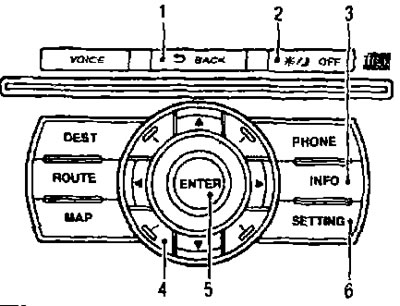
1. Button
 (Return); 2. DAY/NIGHT button; 3. INFO button (Information); 4. Multifunctional switch; 5. ENTER button; 6. SETTING button.
Information system menu
- After pressing the INFO button, the information system menu will appear on the display.
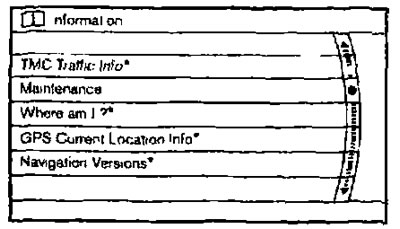
*See separate Navigation System Operation Manual.
Select the desired item using the cursor control buttons (
 or
or  ) and press the ENTER button to confirm your selection and open the corresponding settings window.
Maintenance information
Select an item (MAINTENANCE) and press the ENTER button. Then the maintenance information will be displayed on the screen.
1. To set a reminder, select a Reminder item from 1 to 4 and press the ENTER button.
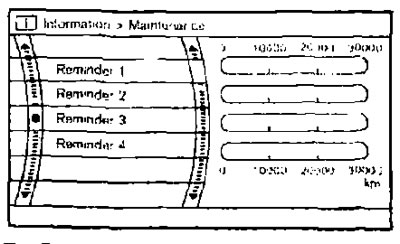
*See separate Navigation System Operation Manual.
Original text on the website NissanBook.ru
2. Set the service interval value using the multi-function switch.
3. To display the maintenance information automatically when the set value is reached, select [Interval Reminder] and press the ENTER button. The ON indicator will light.
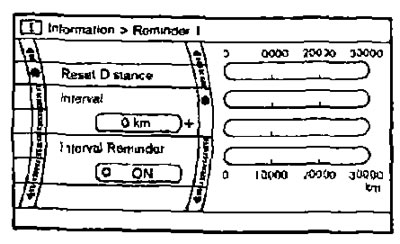
To reset the service interval value, select [Reset Distance] and press the ENTER button.
Settings
If you press the SETTING button, the settings menu will appear on the screen.
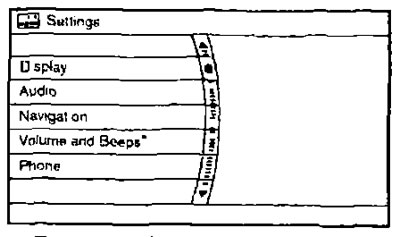
*See separate Navigation System Operation Manual.
- Select the desired item using the cursor control buttons (
 or
or  ) press the ENTER button to confirm your selection and open the corresponding settings window.
Display settings
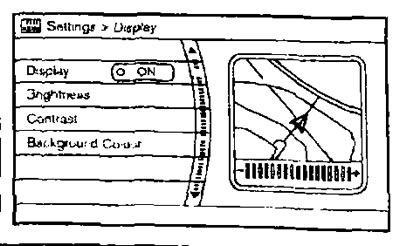
To enter the display settings menu, select [Display] and press the ENTER button.
Turn screen on/off
To turn the screen on or off, press the ENTER button.
Brlghtness/Contrest/BackgroundColour (Brightness/Contrast/Background Color)
To adjust the brightness, contrast and background color, select the desired menu item (Srightness/Contrast/ Background Colour) and set the desired setting using the multi-function switch.
Clock
See the separate Navigation System Operation Manual.
Language
The user can select one of seven languages. See separate Navigation System Operating Manual.
Audio system settings
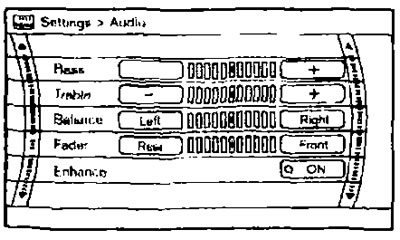
To enter the settings menu, press the SETTING button and use the multi-function switch to select the (AUDIO) item. Then confirm the selection of the highlighted line by pressing the ENTER button.
Bass/Treble/Belance/Fade (Bass Tone/Treble Tone/Balance/Front/Rear Balance)
To adjust the tone quality and volume balance of the speakers, select the appropriate [Bass], [Treble], [Balance] or [Fade] item and adjust the parameter using the multi-function switch.
Enhance (Improving sound quality)
To enable the sound quality enhancement function, set this parameter to ON.
Speed Sensitive Volume (Correction of volume level depending on vehicle speed)
To automatically increase the sound volume depending on the vehicle speed, set the desired level of this effect from OFF (0) to 5.
Press the DAY/NIGHT button
Display settings can be optimized depending on the time of day (day or night). To do this, you need to do the following:
- press the button
 OFF to switch between DAY or NIGHT mode.
 - press and hold the button
 OFF for more than 2 seconds to turn off the display.
 - press the button
 OFF again to turn on the display.